When using the Android SDK, developers can install applications within the emulators. This tech-recipes guide shows how to install (and uninstall) APK files within the Android SDK.
I. To install APK files:
1. Launch Android SDK, start your emulator and leave it in the background. If you haven’t got the SDK, you can get it at Android SDK. You can also learn how to install it without internet connection and how to set up an emulator.
2. Download your favorite apk files. You can check out this interesting post from Shamantears on how to use Google to find free APK files.
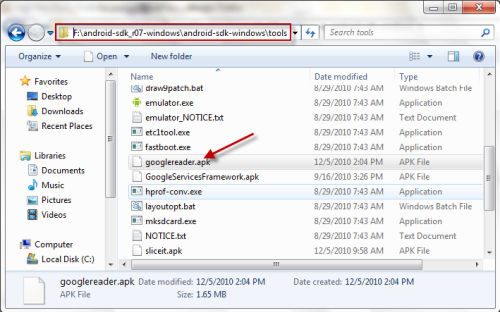
3. Put your apk files inside \android-sdk_r07-windows\android-sdk-windows\tools. Please note that this is the default directory of the SDK. In this post, we will install the Google Reader app.
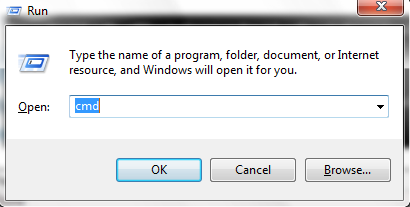
4. Press Winkey+R, this will bring up the Run box, please type in cmd and hit Enter.
5. In Command Promt window, switch to \android-sdk_r07-windows\android-sdk-windows\tools, type in the follow: adb install googlereader.apk and hit Enter. (replace googlereader with your app’s name). It will look like this:

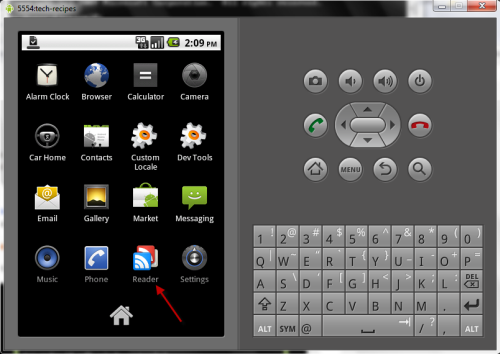
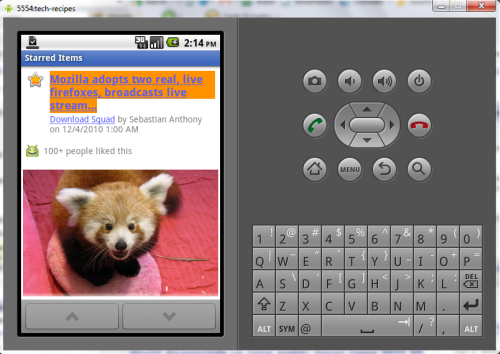
6. Now, switch back to your emulator, you can see your new application.
II. To uninstall APK files:
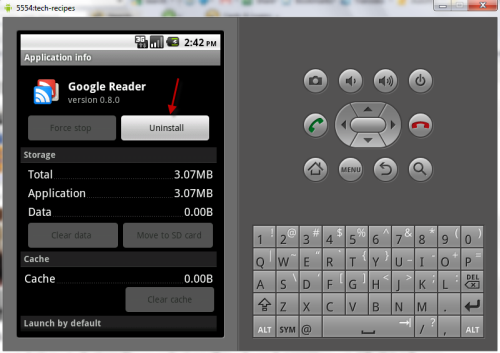
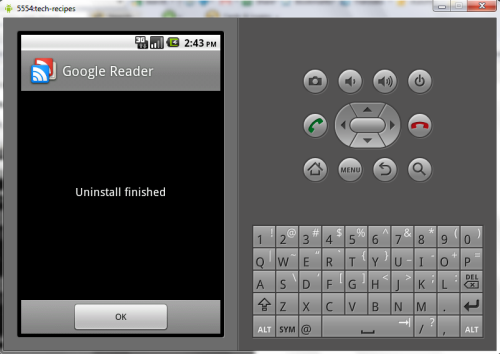
1. On emulator, go to Settings->Applications->Manage applications->Choose the app that you want to uninstall->Uninstall.
Note: Some apps may not work on emulator because they need real hardware or framework

No comments:
Post a Comment